
Using Split View in TrialPad
Split View supports any combination of content: two documents, two multimedia files, or one of each. You can display two pieces of evidence at the same time, side by side, so you can compare documents or walk a witness through related exhibits without switching back and forth.
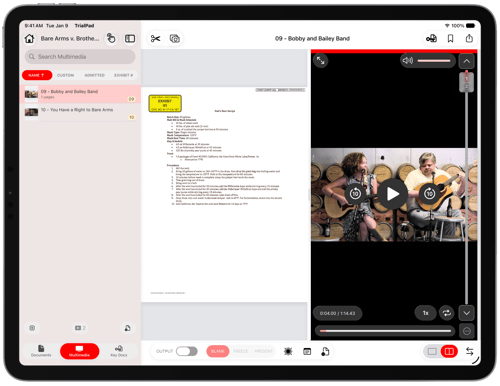
Each pane keeps its own zoom level and page or playback position, so switching the active side never disturbs what's showing on the other.
How to Open Split View
Tap the Split View toggle in the bottom toolbar to turn on Split View.
The arrangement menu appears — choose Left/Right for a horizontal split, or Top/Bottom for a vertical split.
Tap either side of the screen and choose a document or multimedia file to display there.
Tap a side to make it active. An accent-colored bar marks the active pane — tools and page navigation apply to that side only.
Either side can be left empty until you choose something to display there.
How to Exit Split View
Tap the file you want to remain on the screen.
Tap the Split View toggle in the bottom toolbar to turn on Split View.
Arranging the Panes
Change Arrangement: Once Split View is open, tap the Split Screen toggle again to reopen the arrangement menu and switch between Left/Right and Top/Bottom layout at any time.
Change Pane Size: Drag the divider between the two panes to resize them. The divider snaps to 33%, 50%, or 67%.
Switch Positions: With Split View open, tap Switch Position and the content on each side exchanges places immediately.
For details on annotating each side of a split view — including callouts that span both panes — see Annotate Evidence in TrialPad. For connecting your display and other presentation controls, see Connecting TrialPad to Present Evidence and Presenting Evidence with TrialPad.