
Before you present, take a few minutes to set these preferences so your exhibits appear exactly as intended.
Display Settings
Document Labels
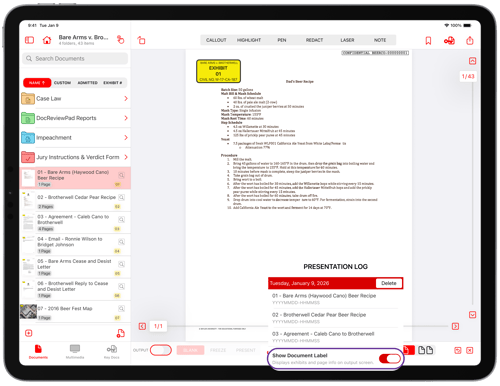
Document labels display the exhibit number and page number on the external screen. This can help the judge and jury follow along and take notes, even if exhibit stickers are not visible. If an exhibit sticker has been applied, the exhibit number will appear alongside the page number. Show or hide exhibit and page numbers on the external screen, so the court and jury can follow along even without visible exhibit stickers.
How to Change Document Label Settings
Open the Presentation Log to control whether document labels appear during presentation.
Tap Presentation Log.
Turn Show Document Label On or Off.
Background Color
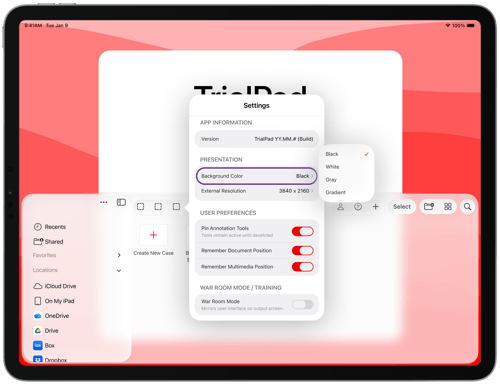
Adjust the background behind documents to improve contrast — a dark background can help reduce glare in a bright courtroom.
How to Change the Background Color
Navigate to the Case Selection Screen.
Tap Settings.
Tap Background Color. Select the desired color.
For related setup, see Connecting TrialPad to Present Evidence. Once you're ready to present, continue to Presenting Evidence with TrialPad.
These settings help ensure documents are easy to follow when presenting in court.