<img height="1" width="1" style="display:none;" alt="" src="https://px.ads.linkedin.com/collect/?pid=4760706&amp;fmt=gif">
Skip to content
  • There are no suggestions because the search field is empty.

Customizing TrialPad Presentation Settings

Adjust War Room Mode, display, document, and multimedia preferences to control exactly what your audience sees during a TrialPad presentation.

Before you present, take a few minutes to set these preferences so your exhibits appear exactly as intended.

War Room Mode

Share the full TrialPad interface — including menus, case files, and annotation tools — with colleagues or clients during strategy sessions or team prep. 

How to Enable War Room Mode (from within a Case File)

  1. Press and hold on the Output toggle.

  2. Tap Enable War Room Mode when it displays.

War Room Mode - within Case File-1

How to Enable War Room Mode (from the Home Screen)

  1. Navigate to the Case Selection Screen.

  2. Tap Settings.

  3. Turn on War Room Mode.

When you're ready to present, turn Output on; the external display will then show only the selected evidence, keeping the interface visible to you alone.

Display Settings

Document Labels

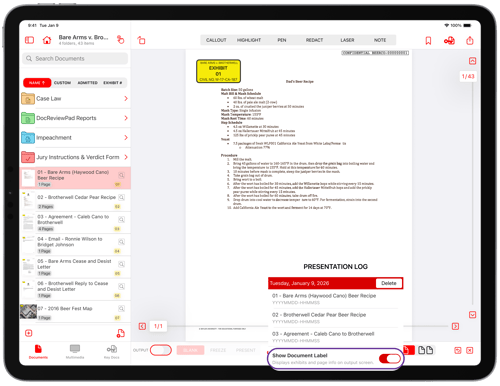
Document labels display the exhibit number and page number on the external screen. This can help the judge and jury follow along and take notes, even if exhibit stickers are not visible. If an exhibit sticker has been applied, the exhibit number will appear alongside the page number. Show or hide exhibit and page numbers on the external screen, so the court and jury can follow along even without visible exhibit stickers.

How to Change Document Label Settings

Open the Presentation Log to control whether document labels appear during presentation.

  1. Tap Presentation Log.

  2. Turn Show Document Label On or Off.

Background Color

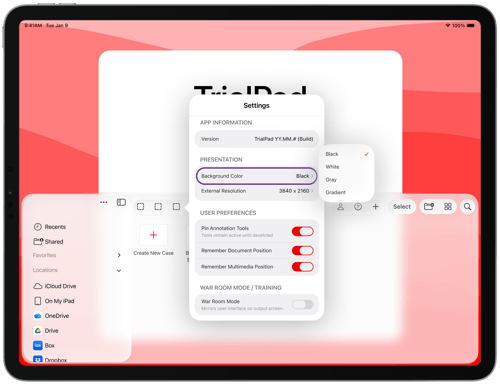
Adjust the background behind documents to improve contrast — a dark background can help reduce glare in a bright courtroom.

How to Change the Background Color

  1. Navigate to the Case Selection Screen.

  2. Tap Settings.

  3. Tap Background Color. Select the desired color. 
 

Document Preferences

  • Keep Annotation Tools Active: When turned on, a selected tool (Pen, Highlight, Redact, or Callout) stays active until you deselect it or choose another tool. When it's off, double-tap a tool or use the lock icon on the tool palette to keep it active instead.
  • Remember Page: Keep your place on a page when switching between exhibits and back. If this is off, documents always reopen to page one.

Multimedia Preferences

  • Remember Playback Position: Resume a video or audio file where you left off after presenting other evidence. If this is off, playback always restarts from the beginning.
  • Loop: Automatically restart a multimedia file when it ends. You can still enable looping on individual files even if this default is off.

For related setup, see Connecting TrialPad to Present Evidence. Once you're ready to present, continue to Presenting Evidence with TrialPad.

These settings help ensure documents are easy to follow when presenting in court.