
Key Docs serve two purposes. First, they let you organize your evidence into folders by saving an "instance" of a document or multimedia file — without touching the original. Second, if you choose, that instance can also carry your annotations, such as highlights and call-outs, tailored to a specific use. This makes Key Docs useful for building opening statement outlines, organizing materials by witness for examination, and structuring deposition exhibits by topic.
Creating Key Docs
Key Docs are references to the original file — deleting a Key Doc does not delete the source document or multimedia file.How to Save a Document or Multimedia File as a Key Doc
Open the document or multimedia file. For documents, apply any highlights, call-outs, or other annotations you want to keep.
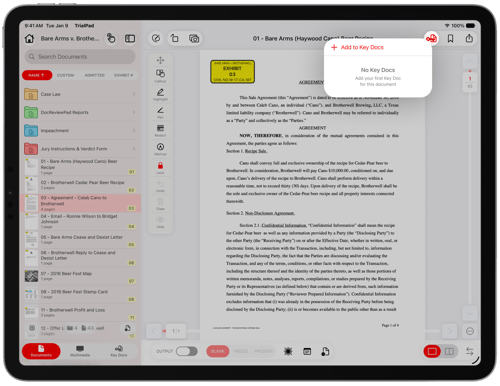
Tap the Key Doc button in the toolbar.
For a document, choose Current Page or Entire Document.
For a multimedia file, choose Entire Video or Select Range…. Selecting a range opens a trim view where you can drag the start and end handles, preview playback, and adjust speed, loop, and volume before confirming.
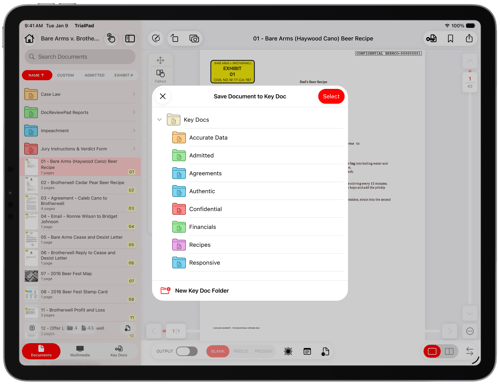
In the Save Document to Key Doc window, choose an existing Key Doc folder, or tap New Key Doc Folder to create one on the spot. Tap Select to confirm.
A confirmation message appears (for example, "Page 3 saved as Key Doc") and the new Key Doc appears in the Key Docs tab.
To save another version — for a different witness or issue — repeat these steps. Each version is saved as its own Key Doc, so your original annotations aren't overwritten.
Removing Key Docs
Deleting the original file in the Documents or Multimedia tab deletes all associated Key Docs.
To delete a specific instance, you can delete it from it's folder in Key Docs. Or you can tap Delete from the Key Docs menu.
Viewing Key Docs
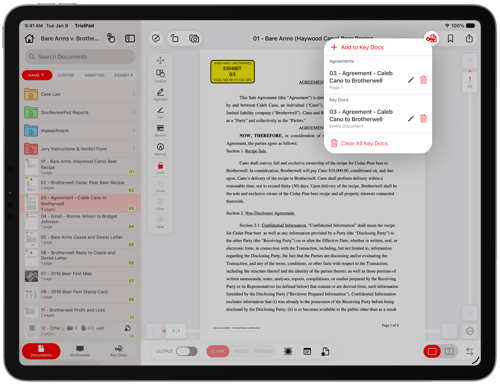
When viewing files in the Documents or Multimedia tab, the Key Doc button will be red if the file is already a Key Doc. Tapping the Key Doc button will allow you to see what folders you have that Key Doc in or add it as an additional Key Doc.
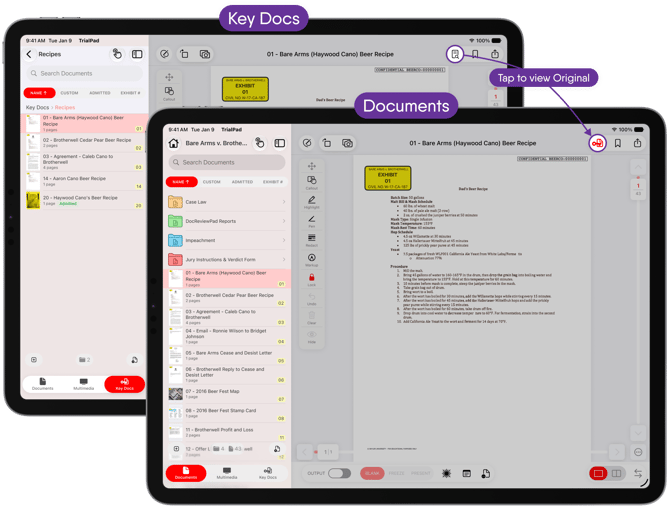
In the Key Doc tab, you can view the file in any of the folders you’ve placed it. When you view the file, the Key Doc button is replaced with a button to navigate back to the original file’s location.
Important Notes
- Key Docs are references to the original file — deleting a Key Doc does not delete the source document or multimedia file.
- Deleting the original file in the Documents or Multimedia tab deletes all associated Key Docs.
- A Key Doc created from a video range keeps its own bookmarks, separate from the source video, and sharing it exports only the trimmed portion. An Entire Video Key Doc carries over the source's bookmarks.
- To turn all documents into Key Docs at once: tap Select > Select All > Edit > Add to Key Docs.
- If you navigate away from a document with unsaved annotations, TrialPad will prompt you to save them as a Key Doc so you don't lose your work.