
Exported Case Files open only in the LIT SUITE version of each app, using the export process built into the legacy apps. A 7-day free trial of the LIT SUITE lets you transfer, open, and back up your Case Files. Afterward, you can keep the LIT SUITE or export your data and cancel before you’re charged.
Before You Transfer: Get Your iPad Ready
Complete these four steps first, in order.
Step 1: Update iPadOS
Make Sure your iPad is Updated to the Current Version of iPadOS 26
How to Update iPadOS
Open the Settings app.
Tap General, then tap Software Update.
If an update is available, tap Update Now.
Step 2: Start a LIT SUITE Free Trial, or Update Your Apps
If you already have a LIT SUITE subscription, update the apps to the latest version and skip to “Quit All Apps and Restart Your iPad.”
How to Start a Free Trial
Go to https://app.litsoftware.com/.
On the “You’re in good company with LIT SUITE!” screen, tap Continue.
On the screen that lists the five apps, tap Continue.
Tap Start my 7-day free trial.
Tap Continue to subscribe or Sign in with Apple.
Enter your purchase information in the Stripe form on the right.
Download the LIT SUITE apps when prompted, or download them from the App Store.
Note: If you’ve already used a 7-day free trial, you won’t get another, and you’ll be charged right away if you continue. You aren’t charged until the trial ends. To avoid a charge, cancel at least 24 hours before it ends.
Please review Cancelling Subscription or Free Trial on our Help Center for more information.
Step 3: Quit All Apps and Restart Your iPad
Quit every open app before you restart.
How to Quit All Apps
From the Home Screen, swipe up from the bottom of the screen and pause in the middle to open the App Switcher.
Swipe up on each app preview to quit it.
When all apps are closed, you return to the Home Screen.
Next, turn off your iPad, wait a minute or two, and turn it back on.
Please review Restart your iPad on Apple’s Support Center for more information.
Important: After you restart, make sure both the legacy apps and the latest LIT SUITE apps are on the same iPad.
Step 4: Adjust your iPad Settings
Set up your iPad so the apps can transfer Case Folders reliably and then Repeat these steps for each Case Folder you want to transfer.
How to Prepare Your iPad
Open the Settings app.
Turn on Airplane Mode.
Turn off Wi-Fi.
Turn off Bluetooth.
Scroll to the bottom and tap Apps.
In the list, tap the LIT SUITE version of the app. It has a white background. The legacy and LIT SUITE versions both appear in this list.
Tap Document Storage, then select On My iPad if it isn’t already selected.
Please review Changing the Default Document Storage Location (iPad) on our Help Center for more information.- Repeat step 7 for each legacy app.
Transfer Each Case Folder to the LIT SUITE
Repeat these steps for each Case Folder you want to transfer.
How to Transfer a Case Folder
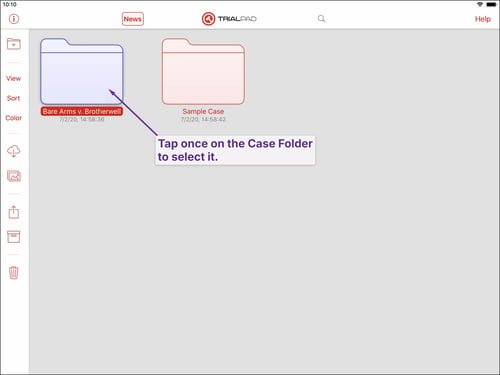
Open the legacy app that contains the Case Folder.
Tap the Case Folder once to select it.
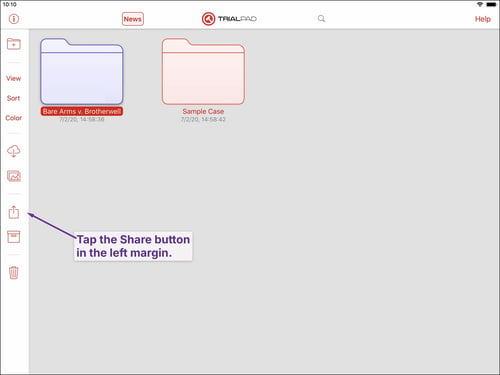
Tap the Share button in the left margin.
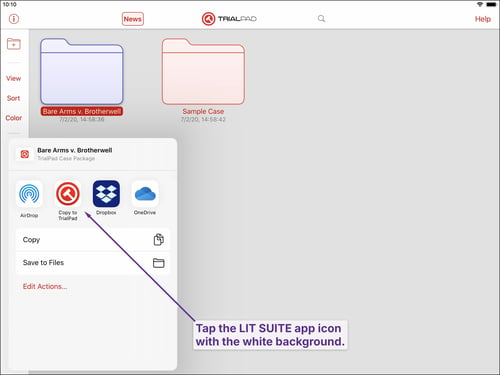
In the popover, find the LIT SUITE version of the same app. You may need to scroll sideways or tap More….
Tap the LIT SUITE app icon with the white background. The Case Folder opens in the LIT SUITE app as a Case File.
Tap the Home button in the top-left corner, then tap Close Case.
The Case File is saved in the LIT SUITE app’s folder in On My iPad.
Tip: To move a Case File to another iPad with a LIT SUITE subscription, save the Case Folder to On My iPad, then touch and hold the Case File and tap Compress. The other iPad can open the compressed Case File.
After You Transfer: Restore Your Settings and Protect Your Data
After you transfer all your Case Folders, turn your connections back on.
How to Restore Your Settings
Open the Settings app.
Turn off Airplane Mode.
Turn on Wi-Fi.
Turn on Bluetooth.
Keep Your Case Files
You can open your Case Files as long as you have an active LIT SUITE subscription or free trial. If you don’t continue with the LIT SUITE, export your data first, then cancel your trial.
-
Please review Exporting and Sharing Evidence on our Help Center for more information about TrialPad.
-
Please review Exporting, Reporting, and Sharing on our Help Center for more information about TranscriptPad.
-
Please review Exports, Reports, and Sharing on our Help Center for more information about DocReviewPad.