
Presenter Notes
Presenter Notes are linked to a specific document or multimedia file. They are stored with each case file and will remain unless removed. Presenter Notes can be compiled into a formatted Presenter Notes Report.
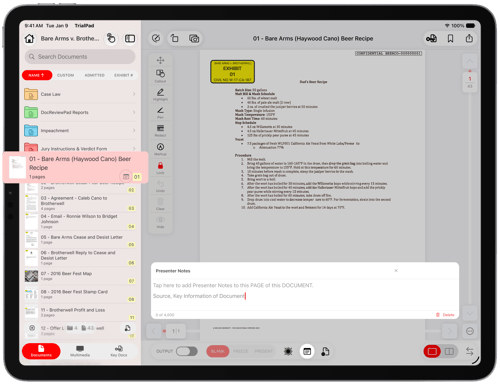
How to Add Presenter Notes to Documents
A note icon appears next to the file in the list to indicate that a note is present.
Open a document or multimedia file in the Preview Window.
Tap Note.
Enter your note for the current page.
- Swipe between pages to add notes specific to each.
Presenter Notes on Multimedia Files
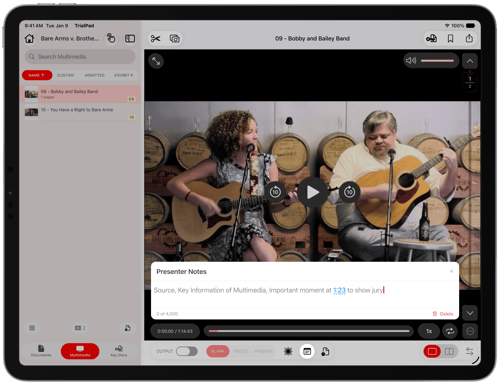
With Multimedia files you can type timestamps to quickly navigate to that portion of the audio or video.
How to Add Presenter Notes to Multimedia Files
Open a multimedia file in the Preview Window.
Tap Note.
Enter your note for the multimedia file.
Use a timestamp (HH:MM:SS) to create a hyperlink to quickly navigate to that spot.
A note icon appears next to the file in the list to indicate that a note is present.
Presenter Notes vs Key Doc Notes
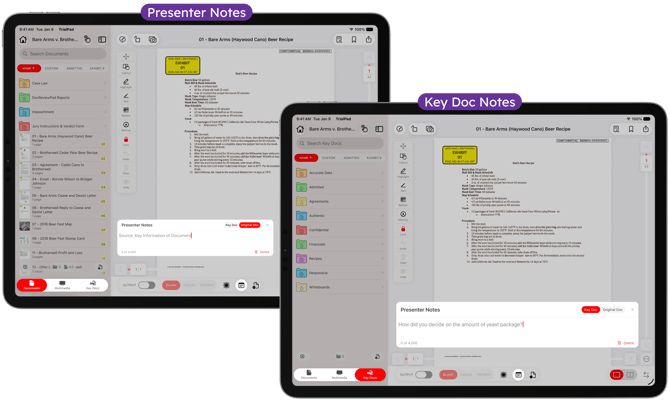
Presenter Notes persist on the main document or multimedia file across every reference in the Key Docs tab. Use Presenter Notes to record details about the file’s use, such as who authored it or where it was introduced.
Key Doc Notes are instance specific notes that can be added to each instance of a document or multimedia file in Key Docs. Use Key Doc Notes for private cues for presenting like annotations or questions for a witness.
How to Add Key Doc Notes
Add any Documents or Multimedia files as Key Docs. The same evidence can be in multiple Key Doc folders or be included multiple times in one Key Doc folder.
For each Key Doc, open it so it appears in the Preview Window.
Tap Notes. When the Notes appear, switch from Original to Key Doc.
Enter your note for the current document or multimedia file, adding any timestamps on multimedia files as needed.
A note icon appears next to the file in the list to indicate that a note is present. Each instance of the evidence can have unique Key Doc Notes.
Viewing Presenter Notes
Presenter Notes allow you to attach private annotations to documents. These notes are visible only on your iPad and can include key talking points, reminders, or procedural cues during a presentation.
How to View Notes While Presenting
Presenter Notes are only visible on your iPad.
Tap the Note button to show or hide notes during presentation.
Use notes as a script for opening, closing, or witness examination.
Creating a Presenter Notes Report
This report shows every note included with a thumbnail of the file so you can review information about evidence or your examination outline. For Information, please review Presenter Notes Report.