
Bulk Add Designations lets you create transcript designations by adding, pasting, or importing pasting page and line numbers. Supported formats are interpreted automatically, allowing you to annotate multiple transcript lines at the same time.
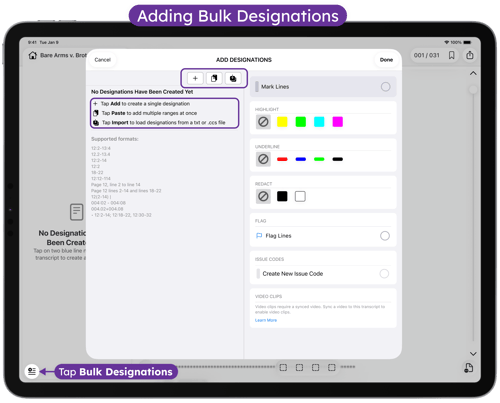
Supported formats
You can paste page and line designations from emails, PDFs, Word documents, spreadsheets, or other sources. TranscriptPad recognizes many common formatting variations, including:
- Page:line ranges (1:12–2:10)
- Dash or word-based ranges (1-12 to 2-10)
- Zero-padded numbers (01:12)
- Slash-separated formats (1/12)
You do not need to reformat the text before pasting. TranscriptPad will normalize supported formats automatically.
How to Add Designations in Bulk
You can add designations individually, paste multiple ranges at once, or import them from a file. Each entry is validated before an annotation or issue code can be applied.
Add a Single Designation
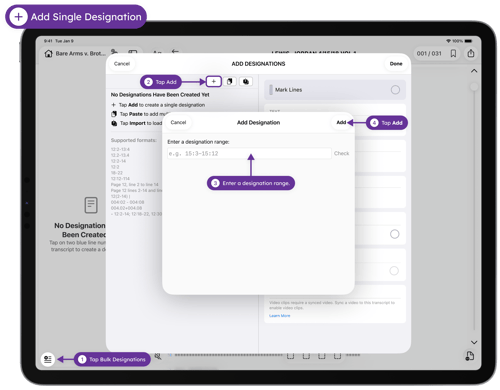
1. Tap Bulk Designations at the bottom-left of the sidebar.
2. Tap Add (+) to add designations one at a time.
3. Paste the page and line designation.
4. Tap Check to review the entry and fix any issues.
5. Tap Add to process the text.
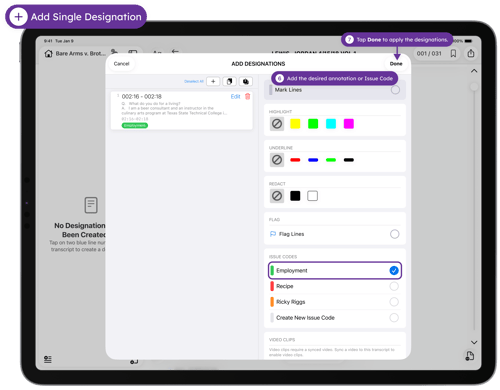
6. Add an annotation or Issue Code.
7. Tap Done to apply the designation.
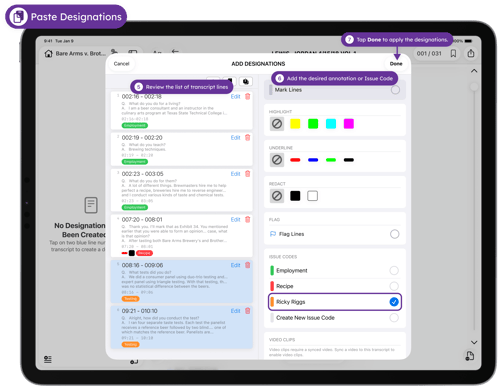
Paste Multiple Designations
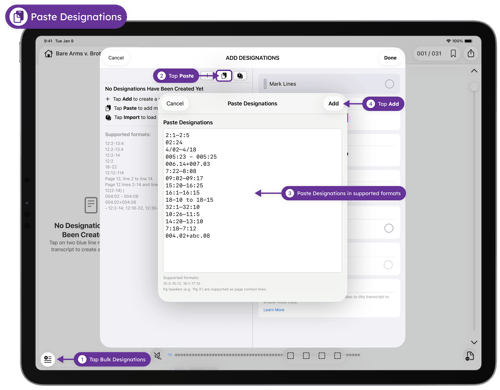
1. Tap Bulk Designations at the bottom-left of the sidebar.
2. Tap the Paste icon.
3. Paste multiple page and line ranges.
4. Tap Add to process the text.
5. Review the interpreted entries and edit or remove any flagged items.
6. Add an annotation or Issue Code.
7. Tap Done to apply the designations.
Import Designations from a File
-
Tap Bulk Designations at the bottom-left of the sidebar.
-
Tap the Import icon.
-
Navigate to and select the file.
-
Tap Open to process the text.
-
Review the interpreted entries and edit or remove any flagged items.
-
Add an annotation or Issue Code.
-
Tap Done to apply the designations.
Resolving Page and Line Validation Issues
Before applying designations, TranscriptPad validates every pasted entry and clearly flags any issues directly in the list. Only valid designations can be applied.
How to Resolve Flagged Entries
-
Tap Resolve to edit the page and line formatting.
-
Delete the entry if it isn’t needed.
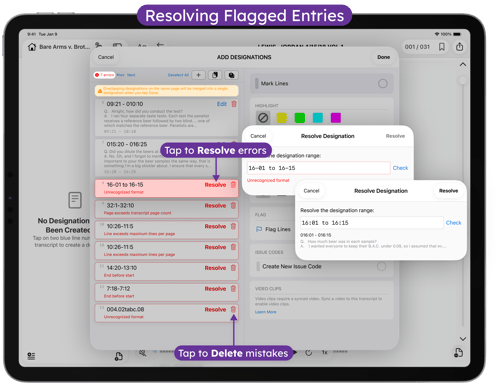
Common validation messages include:
- Overlaps with [line numbers]: Indicates the pasted range overlaps with an existing designation.
- Page and line numbers must be positive: Shown when a page or line number is zero or negative.
- End point occurs before the start point: Indicates the ending page and line come before the starting page and line.
- Unrecognized format: Shown when the pasted text does not match a supported page and line format.
These messages help you quickly identify and correct issues so you can apply designations with confidence.