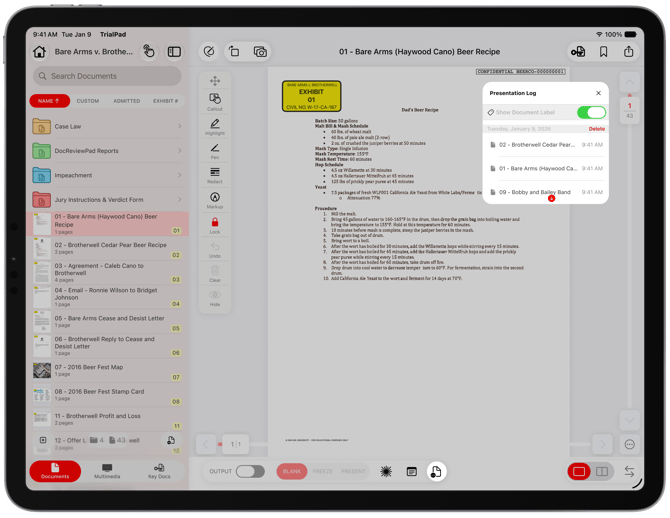
Viewing the Presentation Log
The Presentation Log can be viewed while you are presenting or within a Case File.
How to View the Presentation Log
Tap Presentation Log in the bottom toolbar.
Move the window to your preferred location.
Scroll to view what you have presented.
Creating a Presentation Log Report
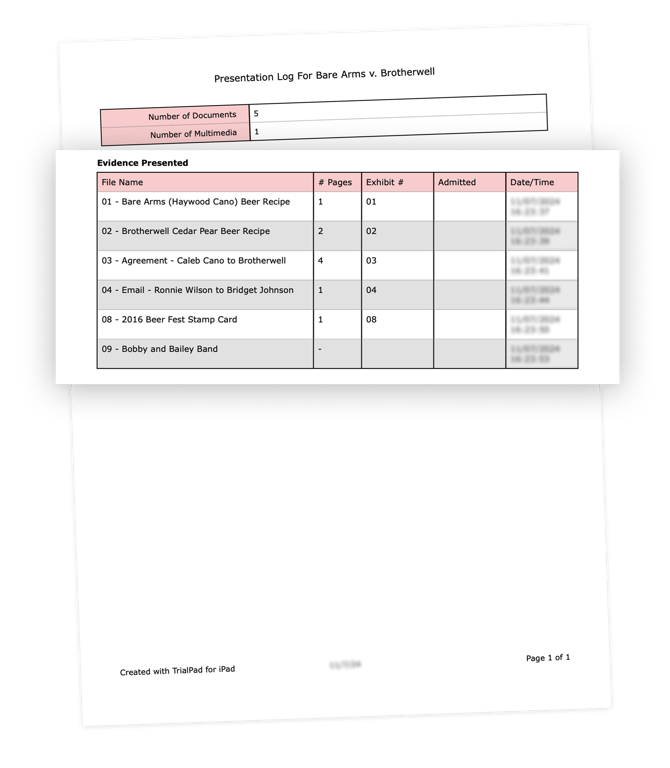
This report shows all evidence (both Documents and Multimedia) that was presented on your external display with date and time stamps. Documents and Multimedia are merged into one report.
How to Create a Presentation Log Report
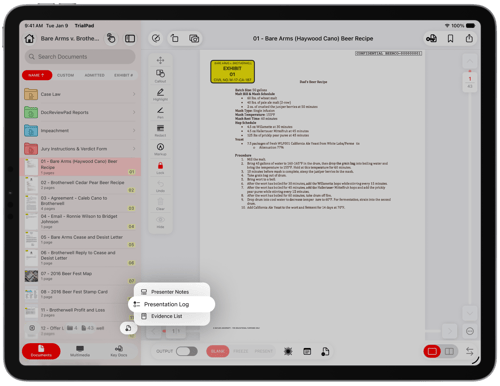
From the Documents or Multimedia tab, tap Reports.
Choose Presentation Log.
The Report will be automatically saved in the Reports folder.
Report includes:
- File Name
- # of Pages (# of pages in Exhibit, no time displayed)
- Exhibit #
- Admitted Status
- Date/Time (of Presentation)