
Auto Scroll keeps your place in a transcript by smoothly moving the text as audio plays or as you review content.
What Auto Scroll Does
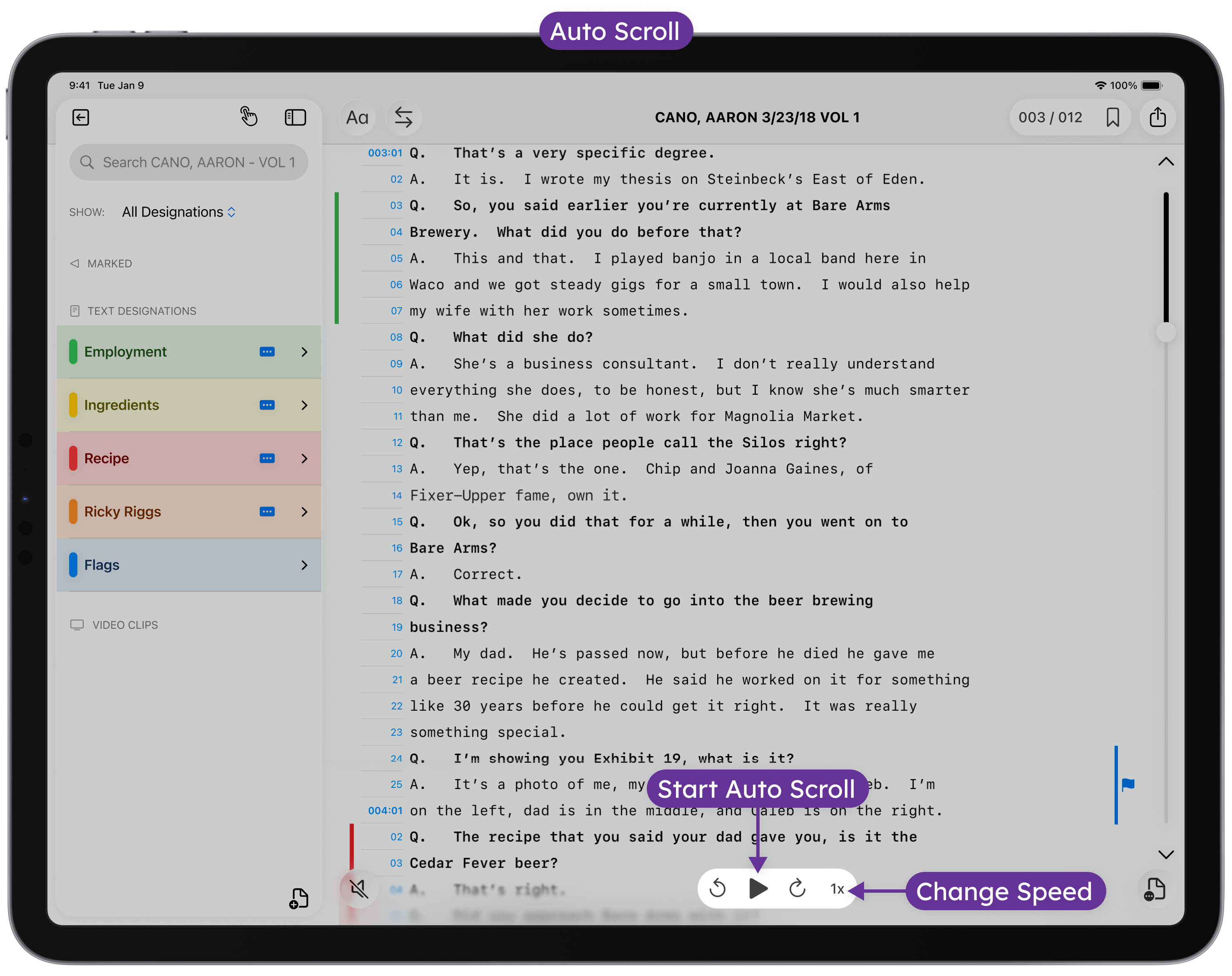
Auto Scroll automatically advances the transcript view so the active line stays centered on the screen. This is especially useful during live playback, depositions, or focused review sessions when you don’t want to manually scroll.
Turn Auto Scroll On or Off
How to Enable or Disable Auto Scroll
Auto Scroll can be toggled at any time while viewing a transcript.
- Open a transcript in TranscriptPad.
- Tap the Auto Scroll button in the toolbar.
- When Auto Scroll is enabled, the transcript will follow playback or navigation automatically.
- Tap the Auto Scroll button again to turn it off.
When Auto Scroll is off, the transcript remains stationary and can be scrolled manually.
Adjust Auto Scroll Behavior
Auto Scroll respects your reading pace and interaction.
- Manually scrolling temporarily pauses Auto Scroll.
- Resuming playback or navigation reactivates Auto Scroll automatically.
- Zoom level and text size do not affect Auto Scroll accuracy.
When to Use Auto Scroll
Auto Scroll is ideal when you want to:
- Follow along with synced audio.
- Review long transcripts without interruption.
- Keep the active designation or line in view during playback.
For precise annotation or comparison, you may prefer to turn Auto Scroll off and scroll manually.
Auto Scroll is designed to stay out of your way while keeping your focus on the testimony that matters.