
Review transcripts in TranscriptPad on iPad, Mac, or iPhone, including on the go with CarPlay. Marked Lines is available on all devices and lets you capture key Q&A for later review anywhere.
If your Case File is saved in iCloud Drive, Marked Lines sync automatically to your iPhone, iPad, and Mac. Open them in TranscriptPad on iPad or Mac to issue-code, annotate, build impeachment slides, create video clips, or pull language into a brief.
TranscriptPad does not require iCloud. You can move transcripts between devices using email, cloud services, or USB, but changes, including Marked Lines, will not sync automatically without iCloud.
Marked Lines is especially useful on iPhone and CarPlay, where full annotation is not practical. With a single tap on the screen, you can capture the currently playing Q&A and return later on iPad or Mac for deeper review.
Mark Lines On the Go
Marked Lines is especially useful when you're driving or away from your desk and can't fully annotate a transcript. Capture key testimony in a single tap and review it later.
How to Mark Lines with CarPlay
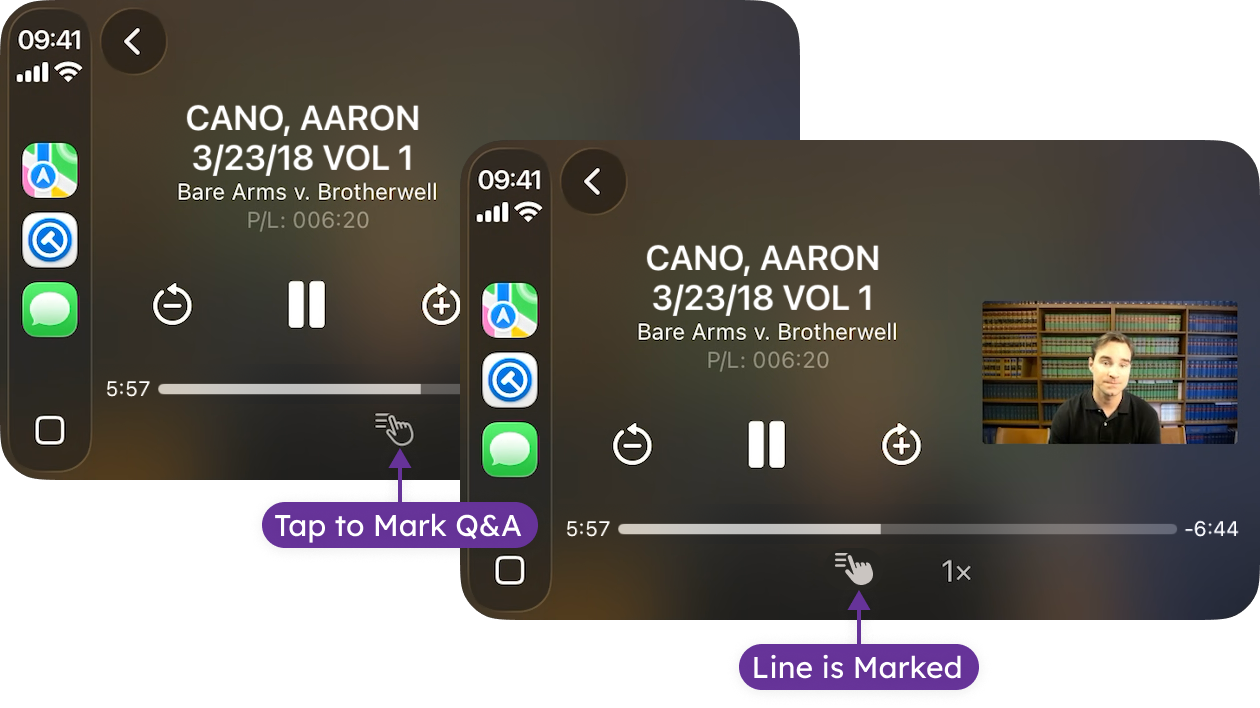
During playback, a single tap captures the current question and answer and saves it instantly to your transcript.
- During playback, tap the Marked Lines button on your CarPlay display.
- The currently-playing question and answer will be saved as Marked Lines in your transcript for later review.
- The Marked Lines button will appear as Marked on your CarPlay display until the question and answer set is complete. Note that tapping the Marked Lines button before the answer is complete will unmark the selected lines.
How to Mark a Line on iPhone During Playback
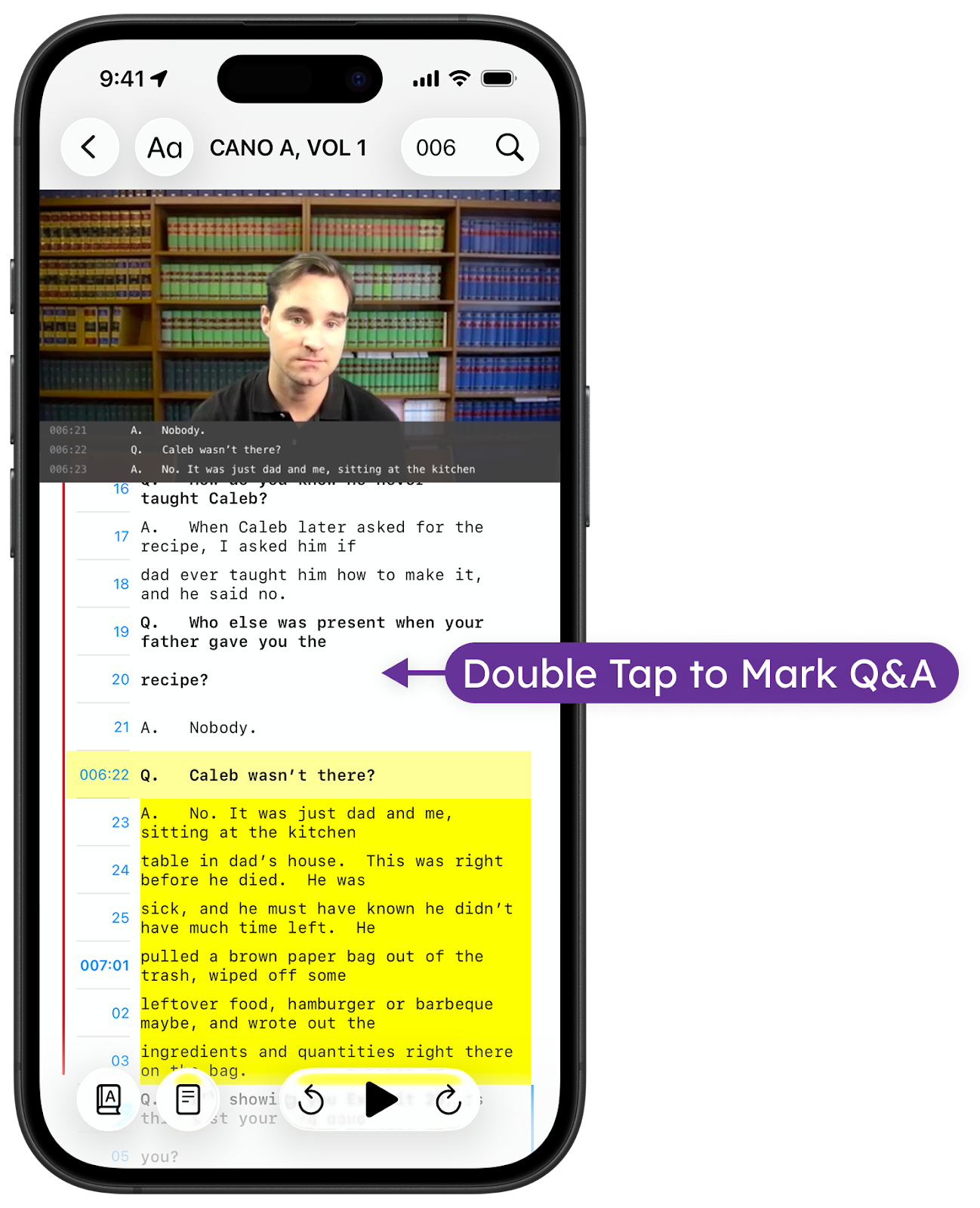
- Double-tap anywhere on your iPhone screen while testimony is playing.
- The currently-playing question and answer will be saved as Marked Lines in your transcript for later review.
Marking Lines (Manual Selection)
You can mark any passage by selecting its starting and ending page and line numbers. This is perfect for an initial transcript review, allowing you to capture key sections that can later be refined with issue coding or annotations by a second reviewer.
How to Mark Lines on iPad or Mac
- Tap/Select the blue starting and ending page line numbers.
- Tap/Select Mark Lines.
- The selected lines will be saved as Marked Lines in your transcript for later review.
You can also double-tap (or double-click) to add marked lines, even when the transcript isn't playing. This creates a Marked Line on the Q/A line currently centered on the screen.
Reports on Marked Lines
Marked Lines are designed to capture important sections during playback on iPhone or CarPlay, or even as part of an initial review on iPad or Mac, so you can efficiently assign Issue Codes or Annotations to complete your review.
Reporting is based on any Issue Codes or Annotations (Highlight/Underline) that are assigned to Marked Lines.