
What is a .tra-sync file?
When Synchron finishes syncing a deposition, they deliver a folder to you. Inside that folder, look for a subfolder called TranscriptPad-TrialPad. That's where you'll find a file ending in .tra-sync.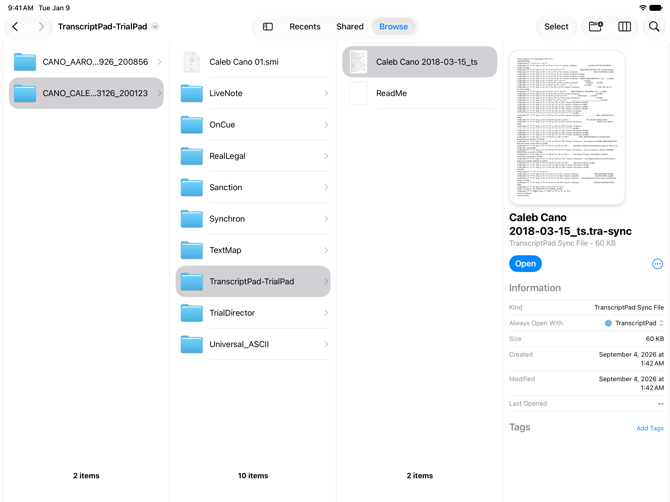
This single file already contains the full transcript, including page and line numbers, bold Q&A formatting, and speaker names, plus the exact video timing for every line.
Note: The TranscriptPad-TrialPad folder may contain other files as well. Only the one ending in .tra-sync will work in TranscriptPad; the rest can be ignored.
Importing the sync file
- In TranscriptPad, import the .tra-sync file the same way you'd import any transcript: using Import Files, the File Inbox, drag-and-drop, or Open In.
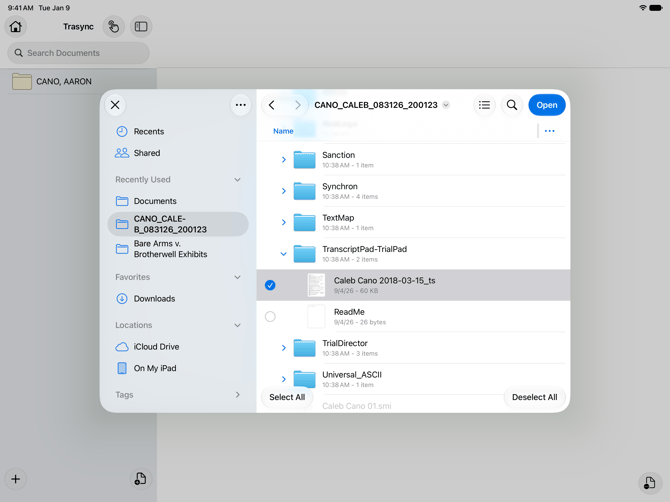
- On the Confirm Transcript Information screen, double-check that the deponent's name, deposition date, and volume look correct. Synchron's file fills these in for you.
Linking and playing the video
- Open the transcript you just imported.
- Tap the Sync Video button, and add the video file(s) for that deposition.
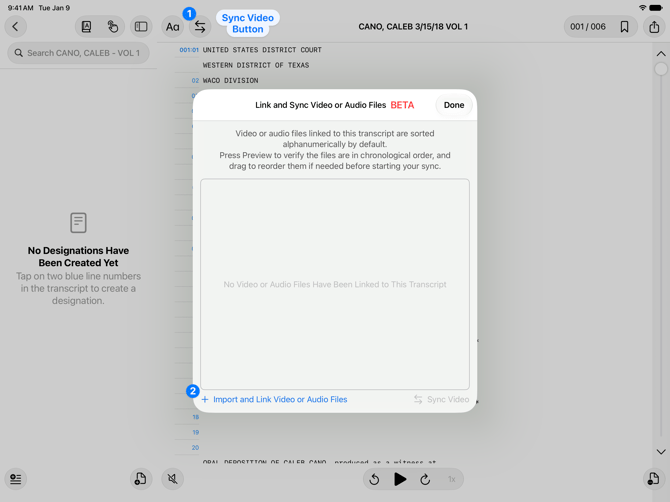
- Once your videos are added, tap Sync Video again (or tap Done). TranscriptPad will ask whether you want to use the video timing that came with the sync file, or sync the video yourself:
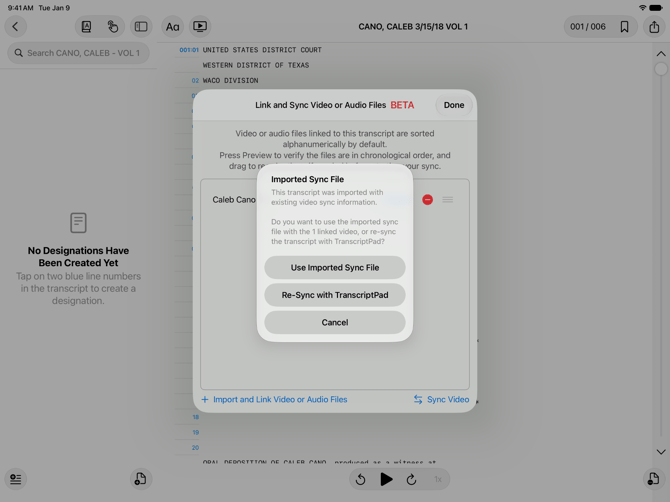
- Use Imported Sync File will use the time stamps in Synchron's file. There's nothing more to do.
- Re-Sync with TranscriptPad ignores Synchron's time stamps and lets you sync the video yourself, the same way you would with any other video and transcript.
That's it! Press play from any line in the transcript, and the video will jump to the matching moment.
If the wrong video gets linked
Synchron's sync file knows which video file(s) it expects. If you try to link a video that doesn't match (for example, a video from a different deposition), TranscriptPad will warn you and name the file it was expecting.
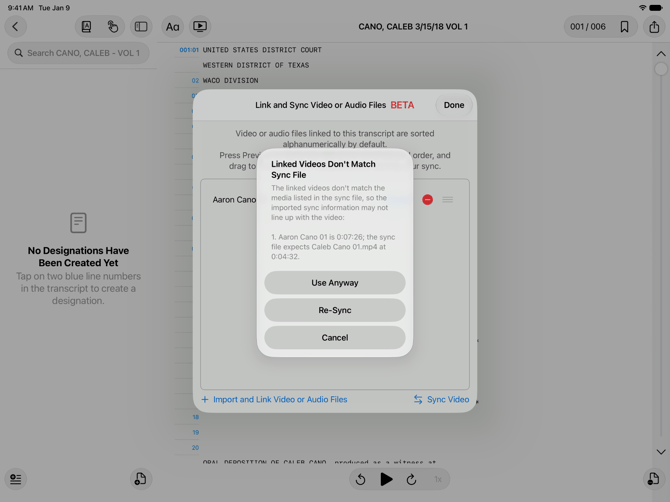
From there, you can choose to:
- Use Anyway If you're sure it's the right video (for example, if you renamed the file), and want to keep Synchron's timing.
- Re-Sync with TranscriptPad This will discard Synchron's timing and sync the video using TranscriptPad .
- Cancel Back out and link the correct video files instead.
Your transcript and video are now ready to use in TranscriptPad. You can review the deposition, search the video using the page and line, or play the video with closed captioning (subtitles).