
TrialPad lets you bookmark specific pages in a document or timestamps in a multimedia file, so you can jump back to key moments in your evidence.
Adding Bookmarks to Documents and Multimedia
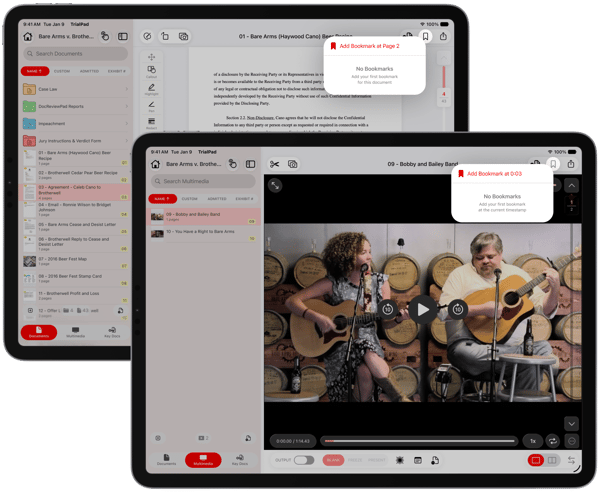
You can add a bookmark to a specific page in a document, or to a specific timestamp in a multimedia file.
How to Add a Bookmark
Open the document or multimedia file you want to add a bookmark.
Navigate to the page (Documents) or play to the moment (Multimedia) you want to mark.
Tap Bookmarks, then tap Add Bookmark at Page [Page Number] or Add Bookmark at [Timestamp].
Importing Bookmarked PDFs
If you import a PDF that already contains bookmarks, those bookmarks will appear under the Bookmarks button in TrialPad.
If a page contains multiple bookmarks, only the first bookmark for that page is imported.
If the PDF includes sub-bookmarks, they are converted into standard bookmarks, so they appear as individual bookmarks in TrialPad rather than in a nested structure.
Renaming Bookmarks
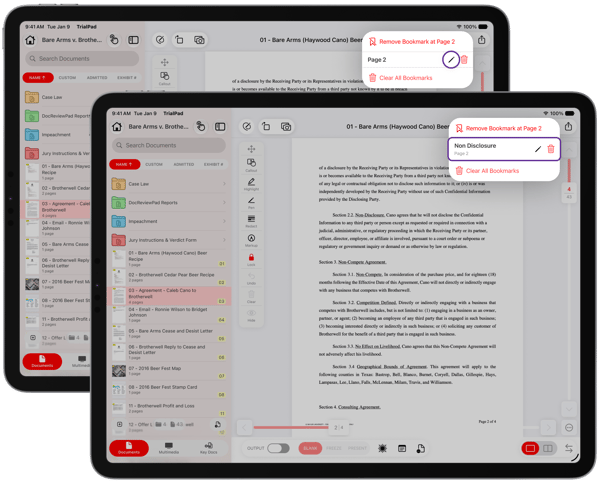
Rename a bookmark to make it easier to recognize in your list.
How to Rename a Bookmark
Tap Bookmarks to view your bookmark list.
Tap Edit to rename.
- Enter a new name. The page number or timestamp will display below the name for easy reference.
Removing Bookmarks
Bookmarks that were imported from the original source or created within TrialPad can be removed at any time, on either Documents or Multimedia.
How to Remove a Bookmark
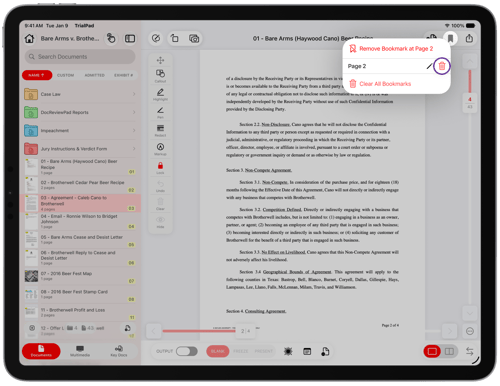
Tap Bookmarks to view your bookmark list.
Tap Delete to remove the Bookmark you want to delete.
To remove every bookmark from that document or multimedia file at once, tap Clear All Bookmarks.
Sharing PDFs with Bookmarks
When you share a document from TrialPad, any bookmarks included will remain visible as native bookmarks. Bookmarks also stay with your documents when duplicated or shared across other LIT SUITE apps.